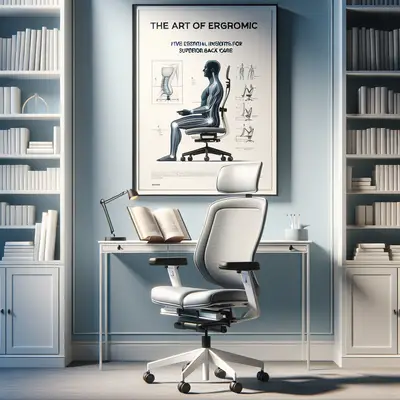
Back pain rarely arrives dramatically. It accumulates quietly—in the way you lean toward your laptop, the angle of your wrist on a trackpad, the height of the chair you never questioned. Ergonomics, when done well, is not about filling your space with gadgets; it is about designing an environment where your spine is no longer compensating for everything around it.
What follows is not a checklist of generic tips, but a set of five refined, research-conscious insights—each one designed for those who see back care as an ongoing, intelligent investment rather than a short-term fix.
Ergonomics as Micro-Architecture: Designing the Spine’s “Support System”
Consider your working environment as a piece of micro-architecture, with the spine as its central structural column. Every object—chair, desk, monitor, phone—either stabilizes or destabilizes that column. This is not simply about comfort; it is about load distribution over hours, days, and years.
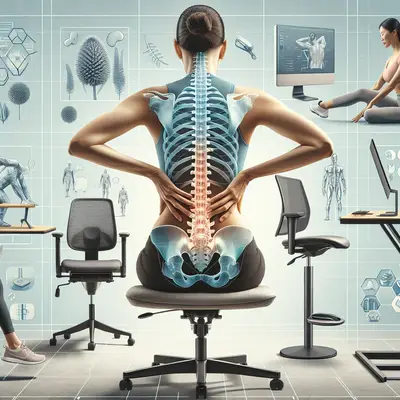
A well‑designed ergonomic setup aims to keep the spine as close to its neutral curves as possible. That means the natural S‑shape of the lumbar and thoracic curves is preserved, rather than forced into a permanent C‑shape of collapse. When your chair height, seat depth, and backrest angle are thoughtfully aligned, your muscles no longer need to work overtime to hold you upright. The result is a quieter, less strained spine that expends less energy simply existing.
Instead of chasing “perfect posture,” think in terms of architectural balance: your ears roughly over your shoulders, shoulders over hips, hips supported so the pelvis doesn’t tip excessively forward or backward. Your desk, monitor, and peripherals should be measured against that alignment, rather than the other way around. The most elegant ergonomic environment is the one you barely notice—because it is no longer fighting your body.
Insight 1: The 20-Degree Rule for Screens—Where Your Neck Actually Relaxes
Most people focus on distance from the screen and overlook angle. Yet the angle at which you view your monitor may have more influence on neck and upper-back strain than the distance itself.
Research-informed guidelines suggest that the top of your main screen should sit at or just below eye level, with the center of the screen about 15–20 degrees below your horizontal gaze. This subtle downward gaze allows the neck muscles to rest in a more neutral position, rather than straining to hold the head tilted upward—or collapsing when the screen is far too low.
Key refinements to apply:
- Place the monitor so your eyes land naturally on the top third of the screen when you look straight ahead.
- Gently tilt the monitor back 10–20 degrees so the entire viewing surface aligns with your natural line of sight.
- If you use a laptop, elevate it to achieve this angle and use an external keyboard and mouse rather than sacrificing your neck to preserve “portability.”
This seemingly modest adjustment often reduces end-of-day neck tension and upper-back fatigue far more effectively than simply “sitting up straight.” The goal is not rigid alignment; it is ease.
Insight 2: The Hidden Power of Arm Support—Relieving the Shoulders and Neck
The weight of your arms is not trivial. Over hours of typing, mousing, or tapping on a tablet, unsupported arms transfer load directly into the shoulders, neck, and upper back. Many people focus on lumbar support but neglect the fact that the neck is often overworking to support the arms’ activity.
Thoughtful arm support begins with chair configuration. Ideally, armrests should:
- Be height-adjustable so your shoulders remain relaxed—not shrugged upward or pulled downward.
- Support the elbows and forearms lightly, allowing your wrists to float above the keyboard rather than collapse into extension or flexion.
- Allow you to draw the chair close enough to the desk so you’re not reaching forward—reaching is the enemy of a calm upper back.
For those without armrests, consider the edge of the desk itself: a gently rounded or padded edge allows you to rest part of the forearm without compressing the wrists or leaning heavily into the surface. Even a subtle shift—bringing your input devices closer so your elbows stay near your body—can transform the tension pattern through your upper spine.
When your arms are supported, your neck finally stops behaving like a crane.
Insight 3: The “Hip Hierarchy”—Why Pelvis Position Dictates Everything Above
Many posture corrections focus on the shoulders and head, but the command center for spinal alignment is the pelvis. A poorly supported pelvis forces the entire spine to compensate, often resulting in rounded shoulders, a forward head, and lower back strain.
A refined ergonomic setup respects what might be called the “hip hierarchy”:
- Your hips should ideally sit slightly higher than your knees, creating a gentle open angle at the hips (around 100–110 degrees rather than a sharp 90 degrees).
- This angle encourages the natural forward tilt of the pelvis, preserving the lumbar curve instead of flattening it.
- Seat depth should allow your back to contact the backrest while leaving 2–3 fingers’ width between the front of the seat and the back of your knees. Too deep, and you slouch; too shallow, and you perch.
Lumbar support should meet you at the small of your back, not push aggressively into it. Many people find that decreasing overstuffed lumbar cushions and instead optimizing hip height and seat angle creates a more natural, sustainable spinal curve.
When the pelvis is properly supported, upper-body corrections become almost effortless—not another posture chore you must remember.
Insight 4: Intentional Movement as Ergonomic Strategy, Not Afterthought
The most sophisticated chair in the world cannot fully protect a spine that is held still for 8–10 hours. The human back is designed for variability—subtle shifts, micro-movements, and periodic changes in load. True ergonomic refinement doesn’t just tolerate movement; it structures it.
Rather than relying on generic “take breaks” advice, think of your day as composed of distinct movement intervals:
- Micro-movements every 10–15 minutes: adjust your sitting position, subtly tilt your pelvis, gently retract and release your shoulder blades, roll your ankles.
- Short standing intervals every 30–45 minutes: stand to read a document, take a phone call standing, or review notes at a higher surface.
- Intentional reorientation 2–3 times a day: briefly lying flat on the floor with knees bent, using a firm surface to allow the spine to decompress from prolonged sitting.
If a height-adjustable desk is available, treat it not as a binary “sit or stand” choice but as an instrument of variation—perhaps standing for brief, focused tasks and sitting for longer, more detailed work. The aim is not to idealize standing; it is to avoid any one posture becoming your only posture.
Your spine thrives on rhythm, not rigidity.
Insight 5: Lighting, Glare, and Visual Calm—The Overlooked Drivers of Spinal Tension
Ergonomics is often framed as a purely physical configuration, yet what you see—and how hard you work to see it—can dramatically alter how your back feels by day’s end.
When lighting is poorly designed, you unconsciously lean forward, crane your neck, or twist your torso to escape glare or chase clarity on the screen. Over time, this creates subtle but persistent strain patterns in the neck, mid-back, and even lower back.
Refined ergonomic lighting considers:
- Ambient light: A soft, evenly distributed general light prevents high contrast between the screen and the room, reducing eye strain and the tendency to hunch closer.
- Task lighting: A dedicated, adjustable desk lamp aimed away from your direct line of sight (and away from the screen) offers clarity without glare.
- Screen reflections: Position screens perpendicular to windows rather than directly in front of or behind them. This reduces the need to twist or tilt to find a glare-free angle.
Visual calm—appropriate brightness, a matte monitor where possible, correctly sized text—translates into physical calm. When your eyes are not straining, your head does not creep forward, your shoulders do not round as quickly, and your back is not drafted into service to compensate for what your lighting could have handled.
In an elevated ergonomic environment, light is treated as carefully as furniture.
Conclusion
Elegant ergonomics is not loud. It is not a desk overrun with accessories or a chair boasting endless, unused levers. Instead, it is a quiet alignment of elements—screen angle, arm support, pelvic position, movement rhythm, and lighting—working together to create a space where your spine is no longer under constant negotiation.
For those navigating back issues, these five insights offer more than comfort; they offer a new relationship with your environment. One where your surroundings are not an adversary to be endured but a carefully tuned system that respects the complexity and refinement of your spine.
The most sophisticated back care is not always visible. You feel it in what doesn’t hurt at the end of the day.
Sources
- National Institute of Neurological Disorders and Stroke – Low Back Pain Fact Sheet – Overview of causes, risk factors, and the impact of prolonged sitting and posture on back pain
- Mayo Clinic – Office Ergonomics: Your How-To Guide – Practical, research-informed guidance on workstation setup, including monitor, chair, and arm support principles
- Occupational Safety and Health Administration (OSHA) – Computer Workstations eTool – Detailed federal guidelines on screen height, seating, arm positioning, and lighting to reduce musculoskeletal strain
- Harvard Health Publishing – Stop Hunching: Hints to Improve Your Posture – Discussion of posture mechanics, pelvic alignment, and the role of movement in maintaining spinal health
- Cornell University Ergonomics Web – Computer Workstation Guidelines – Evidence-based recommendations on monitor angle, keyboard/mouse placement, and the importance of movement variation in desk work
Key Takeaway
The most important thing to remember from this article is that this information can change how you think about Ergonomics.